Your Online Farm Store Ready in 4 Easy Steps
You're signed up. Now plug in Square, sync your products, set one pickup spot, and schedule your store hours. An afternoon's work and you're taking online orders.

If you haven't signed up yet, start here. It's about five minutes. Once you're in, four more steps stand between you and your first online order:
- Connect to Square (payment provider)
- Import / sync your products
- Add one or more pickup locations
- Set your store hours
Tangaza puts a sticky checklist on your dashboard the first time you log in, guiding you through each step.
1. Connect your Square account
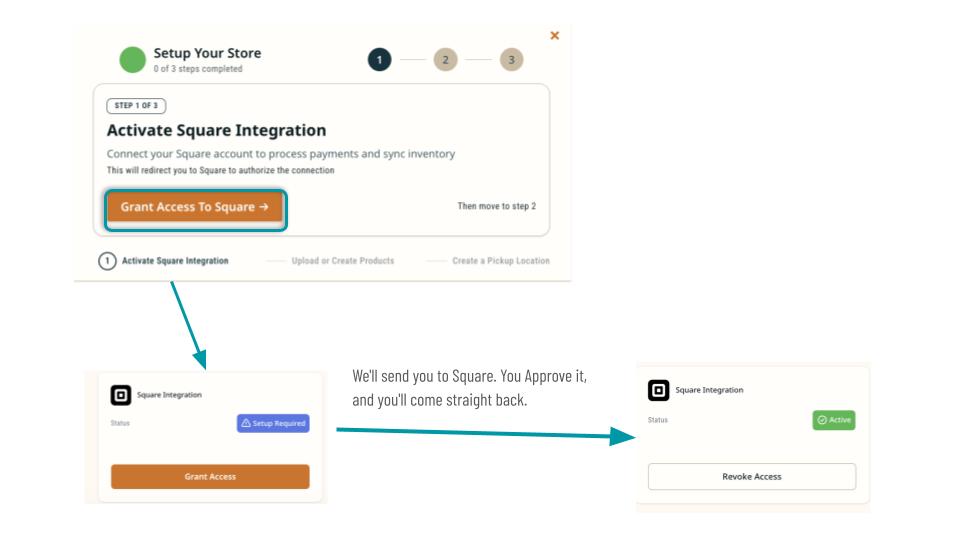
The first banner says Grant Access To Square. Click it once, log in to Square, approve the connection, and you're done. Square is the bridge that lets your existing in-person catalog flow into your online store, so this is the step that does most of the work for you.
2. Import / Sync your products
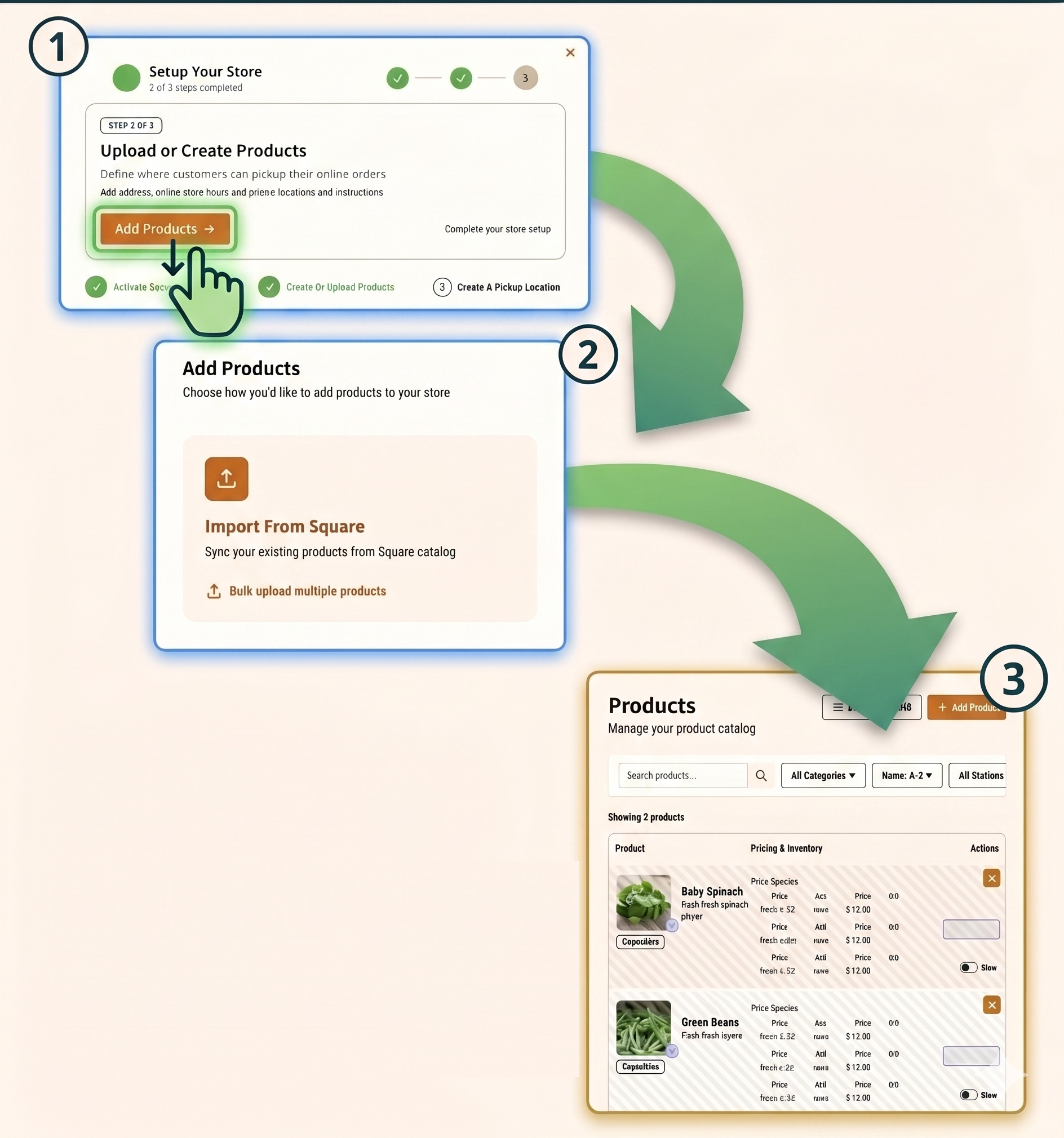
Once Square is connected, the next banner sends you to your products page. There's a Sync from Square button at the top. Hit it, and your catalog (names, photos, descriptions, prices, even price units like dozen, bunch, or box) is imported into your Tangaza store.
No spreadsheet to upload. No re-typing prices. No copy-pasting photos one at a time.
3. Add a Pickup Location
The next banner is the pickup location. Tell Tangaza where customers come pick up: a name, an address, a weekly time window.
Below is an example.
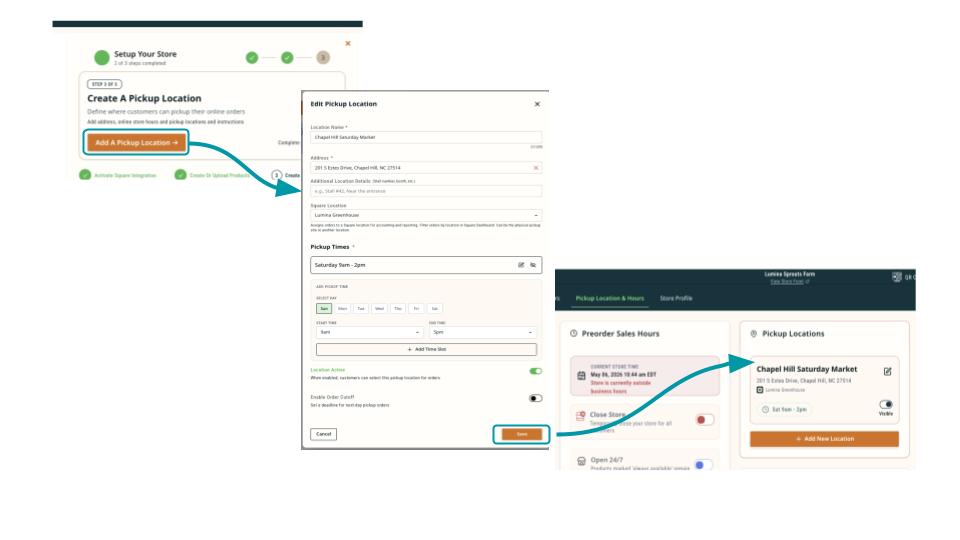
Chapel Hill Saturday Market, 201 S Estes Drive, Chapel Hill. Every Saturday 9 a.m. - 2 pm.
Save it once. The slot recurs every week, automatically. You don't touch it again unless something actually changes. Set it and forget it.
4. Set your store hours
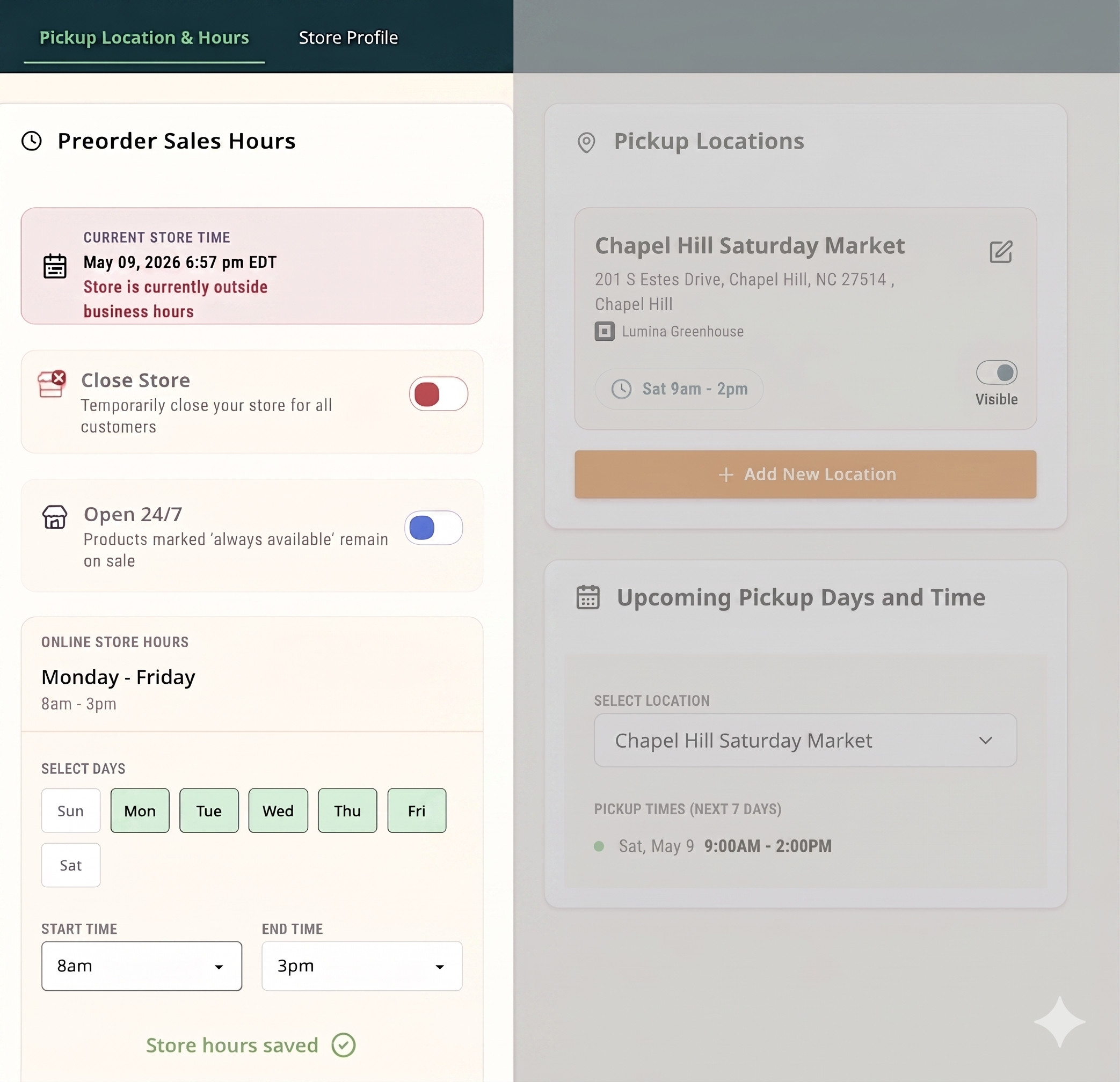
Last step: your store hours. This is the window when your store is open for orders — when customers can place an order, and when you're getting ready to fulfill them.
Pick the hours that fit your week. For example: Monday 8 a.m. to Friday 3 p.m.
Save it once. Tangaza opens your store automatically every Monday morning and closes it Friday afternoon. Next week it does the same thing. You don't touch it again. Set it and forget it.
Need to change it later — a holiday week, a new schedule, a one-off closure? Open the page, edit the hours, save. Done.
Tangaza
We build sales tools for small farms and write about what we learn from the people using them.