Deposit Reservation Saves the Day (Gobble Gobble)
This season, Bull City Farm used Tangaza's deposit reservation feature to manage their turkey orders. Here's how it went.

≈ 5 min
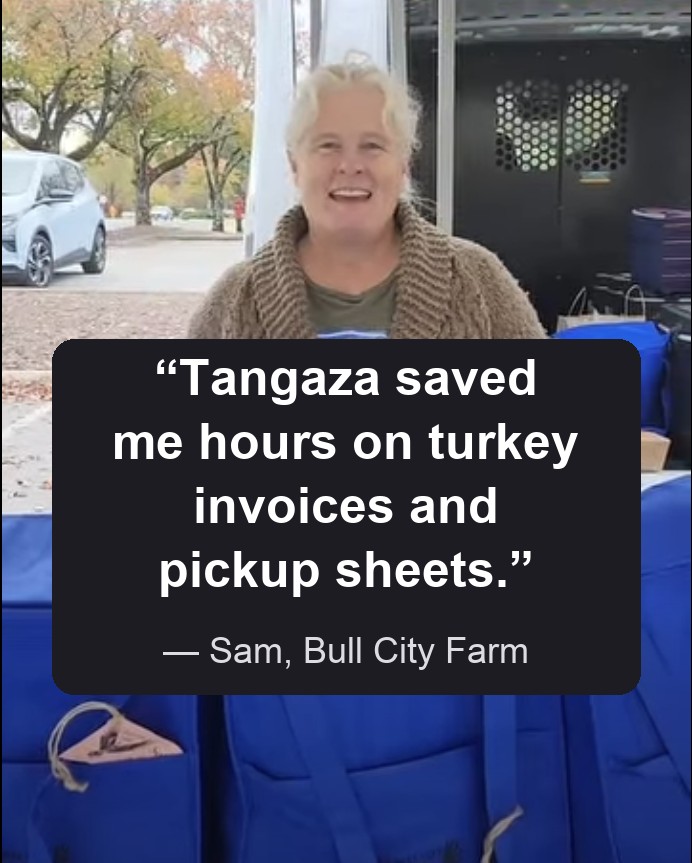
Processing turkeys is a huge feat. Managing orders, especially with tens of turkeys and a small team, can be overwhelming. Every bird gets reserved months ahead, every customer wants a different size, and somebody has to keep all of it straight. It's a spreadsheet nightmare.
This year, Sam at Bull City Farm tried our deposit reservation feature. Here's how it went.
Setting it up
You start on your Products page. Change your turkey's status to Deposit Reservation, then:
- Pick a price option for the deposit
- Pick when deposits end
- Tick Price this by weight and choose the unit, since turkeys are sold by the pound
Taking deposits
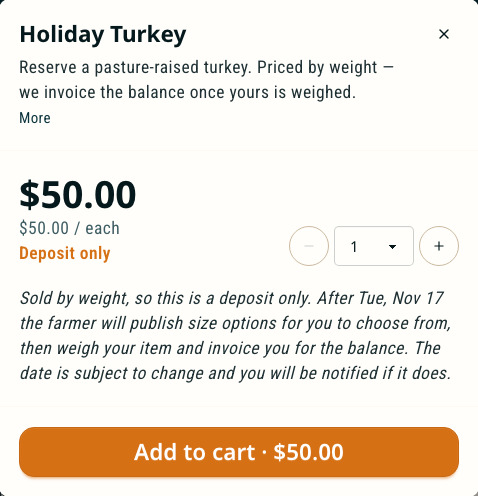
Shoppers see the turkey in your store with a deposit ribbon. They pay only the deposit now, and they're told you'll be in touch after deposits close.
Picking the bird
When the deposit window closed, it was time for shoppers to choose their bird. Sam already had her own way of doing this, so she used it. She emailed her depositors a simple Google Form, and each of them picked the size they wanted and where they'd like to pick it up.
Tangaza has its own bird size selection and weight entry too. We're building on Bull City Farm's feedback to make it an even better fit for small farms.
Weighing and invoicing
Once the answers came in, Sam put together a spreadsheet with each customer's turkey type, weight, price per pound and pickup location.
That's where Tangaza took over. A short wizard asked for her sizes, her pickup locations and her turkey types with their prices per pound. Then she uploaded the spreadsheet. Tangaza checked every row, matched each person to the deposit they'd already paid, and showed her the lot before saving anything.
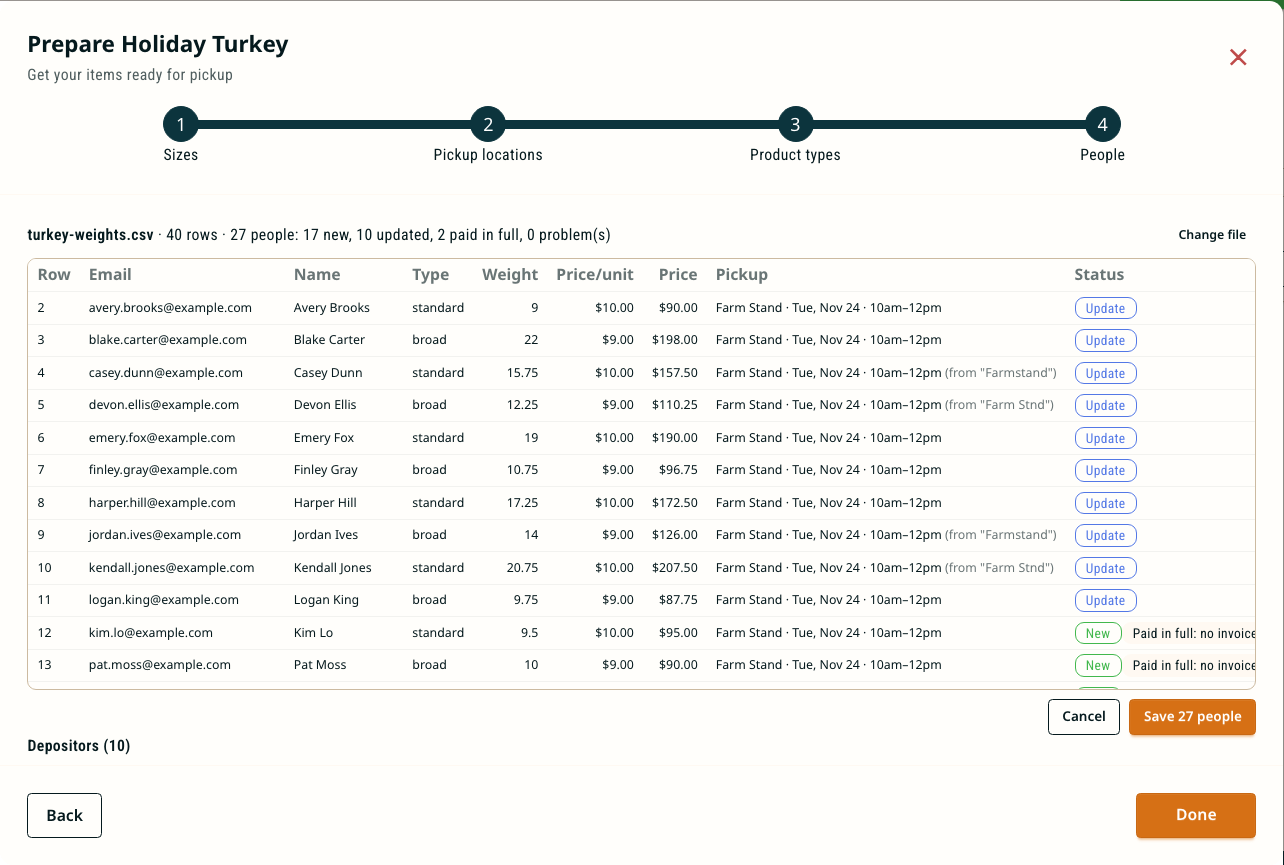
After saving, every turkey was laid out with its weight, its price and the invoice amount, with the deposit already taken off. She gave it a quick check and hit Send all invoices.
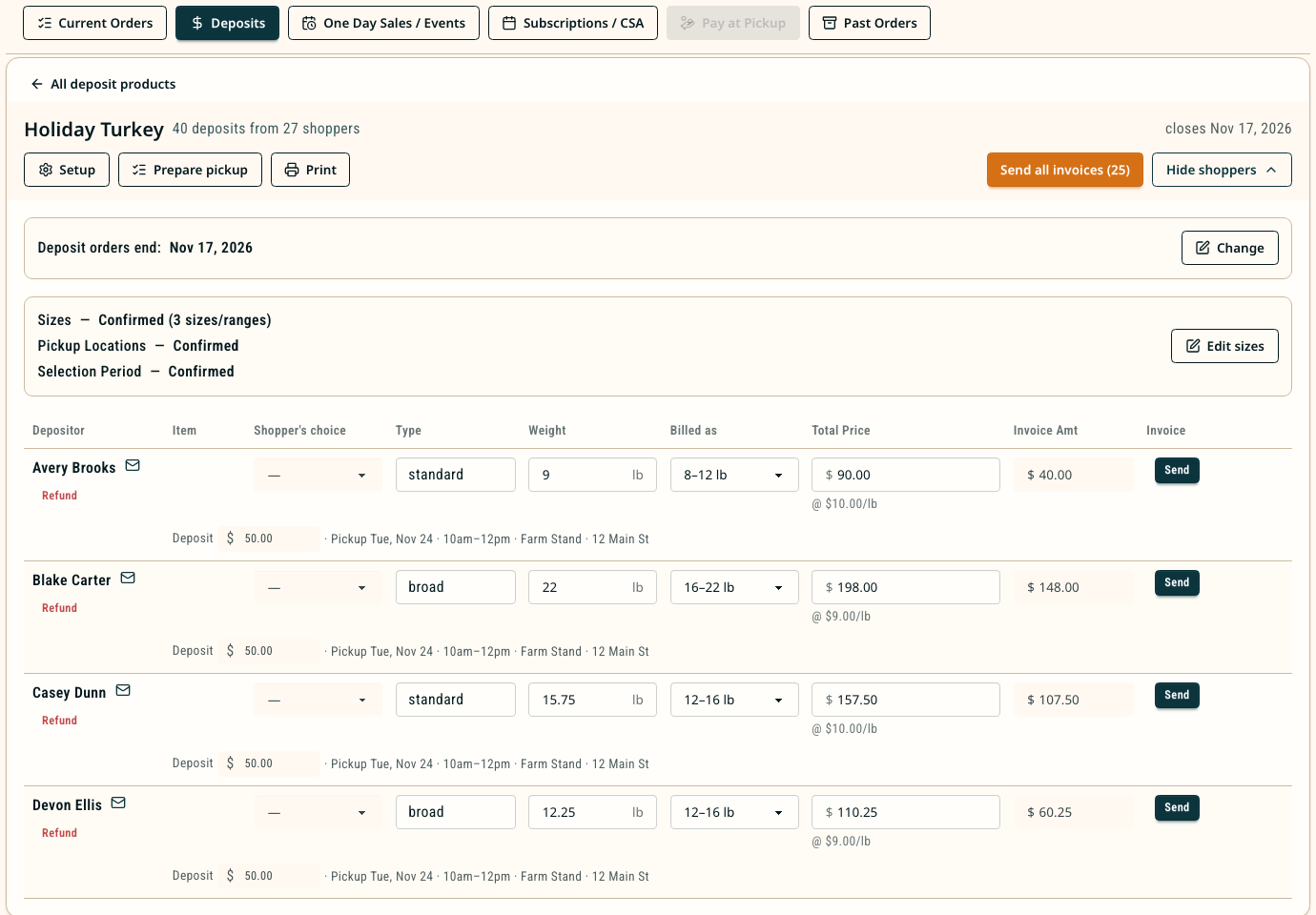
Dozens of invoices went out in minutes. No typing invoices into Square one by one. No mixing up who paid what deposit.
Tracking payments
Each shopper got their invoice from Square by email, and an email from Tangaza with the same link to pay.
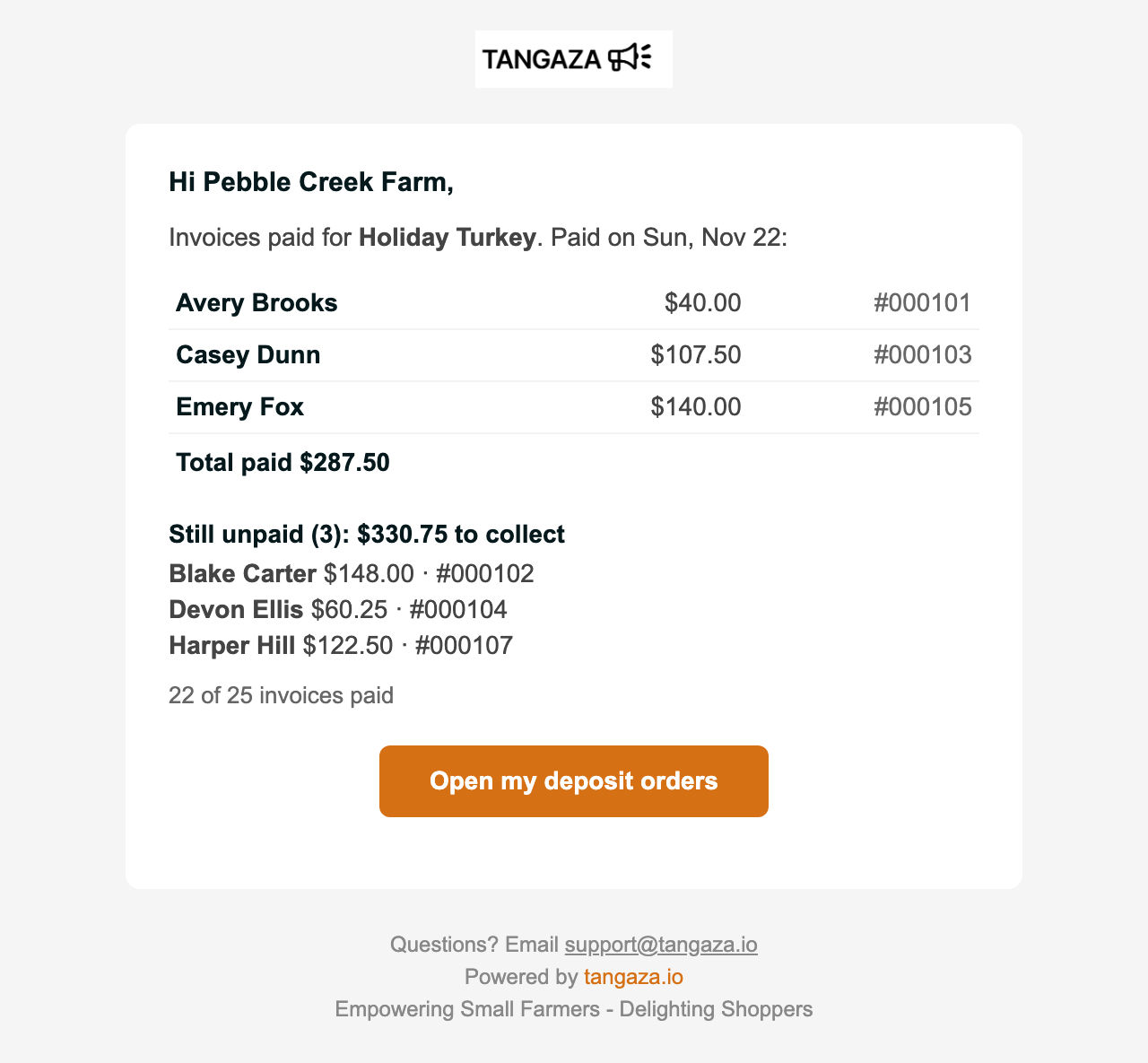
Sam got a daily summary email showing who had paid and who still owed. No need to open the app.
Pickup day
Sam didn't have to make a single pickup sheet. A few hours before pickup, Tangaza emailed her the customer sheets, one for each pickup location and ready to print. She could also print the sheets anytime from the Orders dashboard. Anyone who still owed had a QR code next to their name that links to their Square invoice. If they turned up without paying, they just scanned their code with their phone and paid right there.
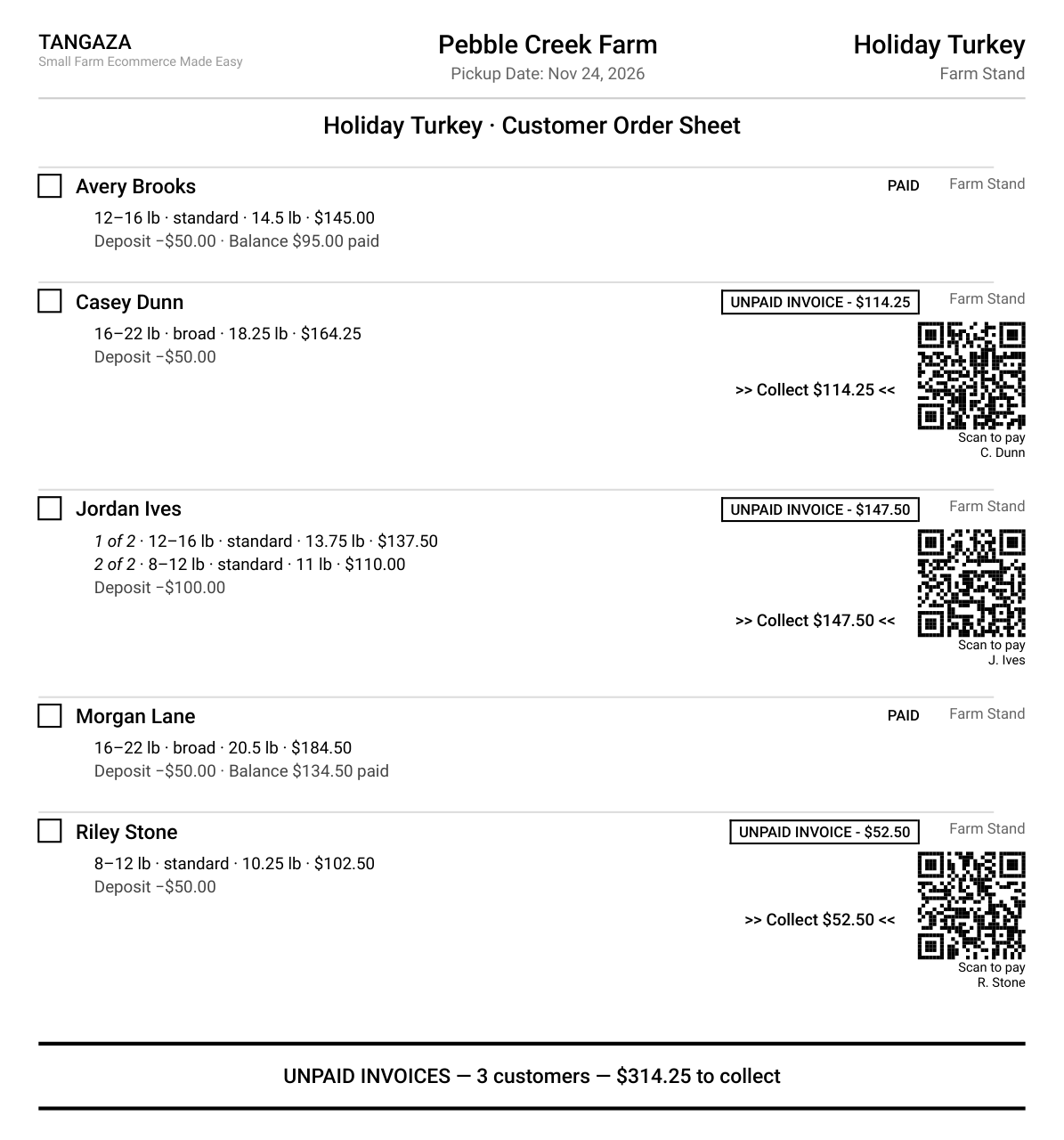
Some folks still wanted to pay cash, and that was easy too. Each invoice sits in Square under the shopper's name, so she could find it in the Invoices section of the Square app in no time and mark it paid in cash.
The results
Sam told us our deposit reservation feature tremendously reduced the time she spent creating and managing invoices, and significantly cut down on invoicing errors.
Deposit reservation gets the most out of Square. Invoices are created and sent through Square, and each one is filed under the Square location for the shopper's pickup, so reporting by pickup location is easy. Where Square falls short for small farms, Tangaza fills the gap: deposits taken off every invoice automatically, weights and prices straight from your own spreadsheet, a morning email showing who has paid, and printed pickup sheets with a pay QR code next to every unpaid name.
If you take reservations for turkeys, hogs or beef shares, contact us for a demo.